Business Edition Elite Manual
Advanced Bidirectional Marketing & AI Autopilot Outreach Platform.
00. Software Initialization
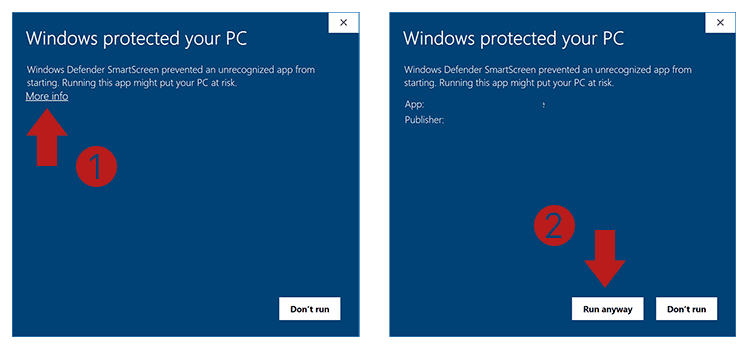
If you see the SmartScreen window before installation, click on More Info → Run Anyway.
01. WA Auto-Responder & AI Chatbot
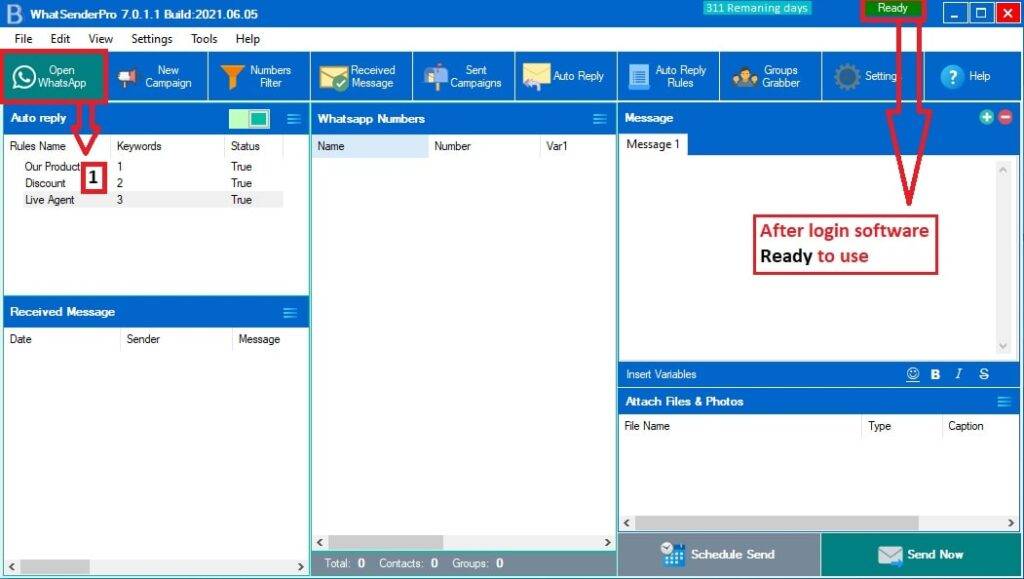
WhatSender Pro Business Edition automatically handles incoming traffic using precise rules and welcome menus.
Step 1. Welcome Message Configuration
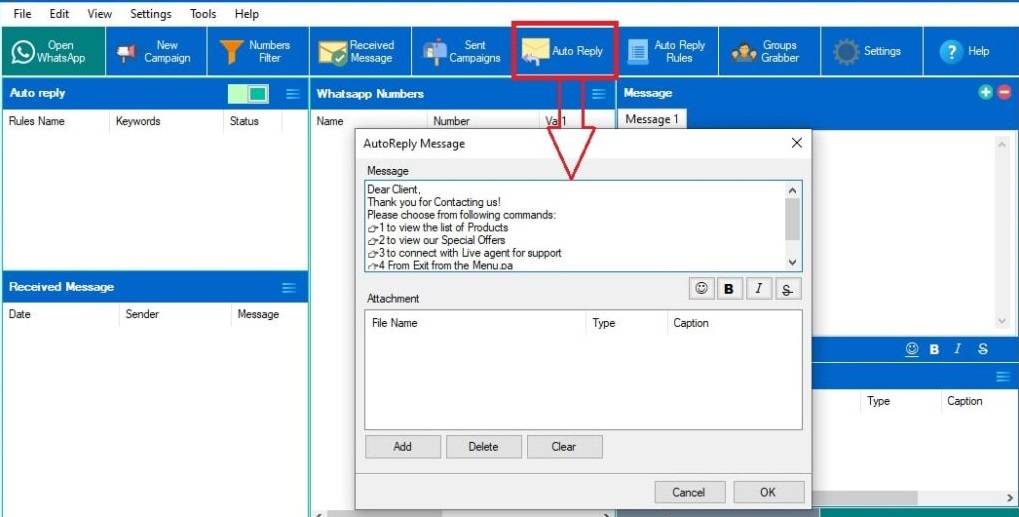
Click WELCOME MESSAGE to define your digital reception. You can include attachments like photos or menus.
Step 2. Auto Reply Rules
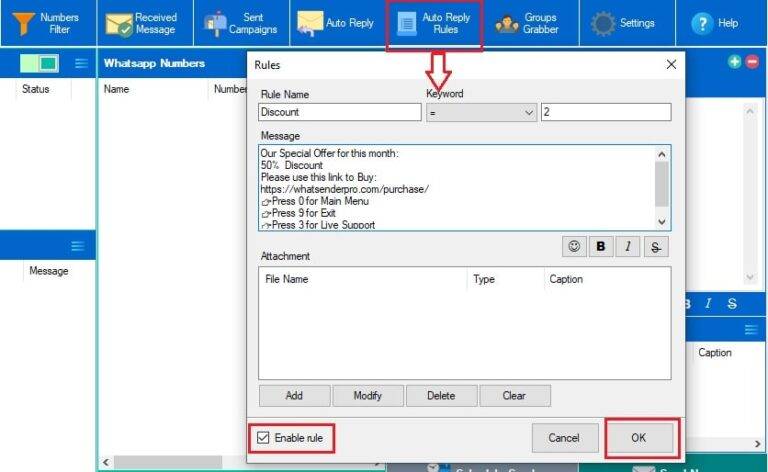
Click AUTO REPLY RULES to map keywords to specific responses, including nested menus for deep interaction.
Step 3. Auto Reply ON / OFF
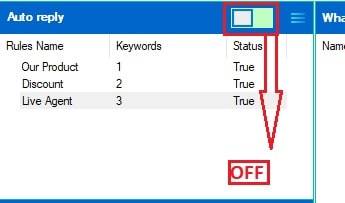
At any time you can activate or deactivate the sending of these automatic replies by clicking on the cursor at the top. By positioning the switch to the right (WHITE), automatic replies will NO longer be sent.
Step 4. Auto Reply Rules Modify and Remove
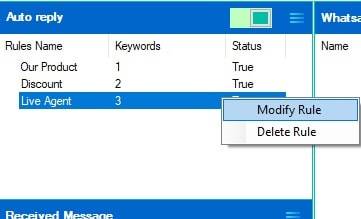
Enter all the automatic replies you want. These will appear on the left side of the program. You can right-click on any reply to edit or delete it.
02. Professional Bulk Sender
Industrial outreach at scale. Connect multiple profiles and import contacts from global database formats.
Data Importing Architectures
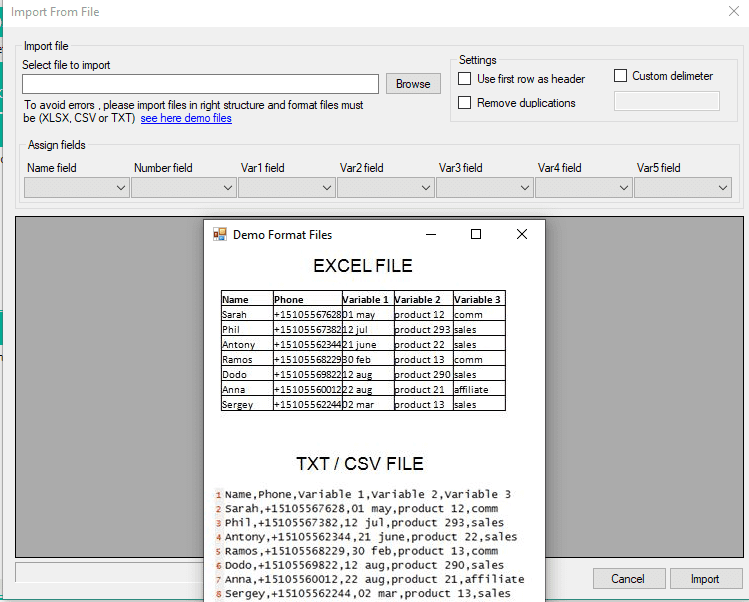
Import from Excel, CSV, or direct from WApp. Business Edition supports multiple data streams simultaneously.
Data Importing WhatsApp contacts & Groups
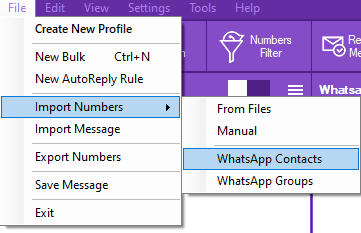
To import the contacts from WhatsApp and Groups is very simple. Click on the IMPORTS button and then choose how to import contacts. In the case of manual import, you can only enter phone numbers (with international prefix) or name and number separated by a comma. The advantage of entering the name is that you can send personalized messages by automatically inserting the name of that contact in the message itself.
03. Sending Modes & Anti-Ban Security
Choose your deployment strategy based on lead temperature and account authority.
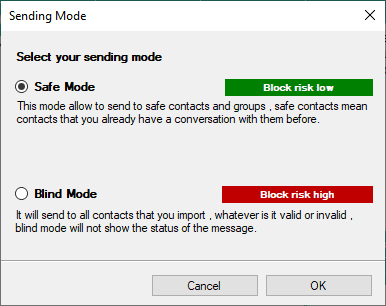
Safe Mode
Ideal for existing clients. Only sends to contacts with past conversations. Extremely low risk.
Blind Mode
Aggressive outreach. Sends to all contacts. Requires random delays and spintax for safety.
04. Industrial Discovery Utilities
Clean your data and manage sender reputation using advanced localized tools.
High-Speed Number Filter
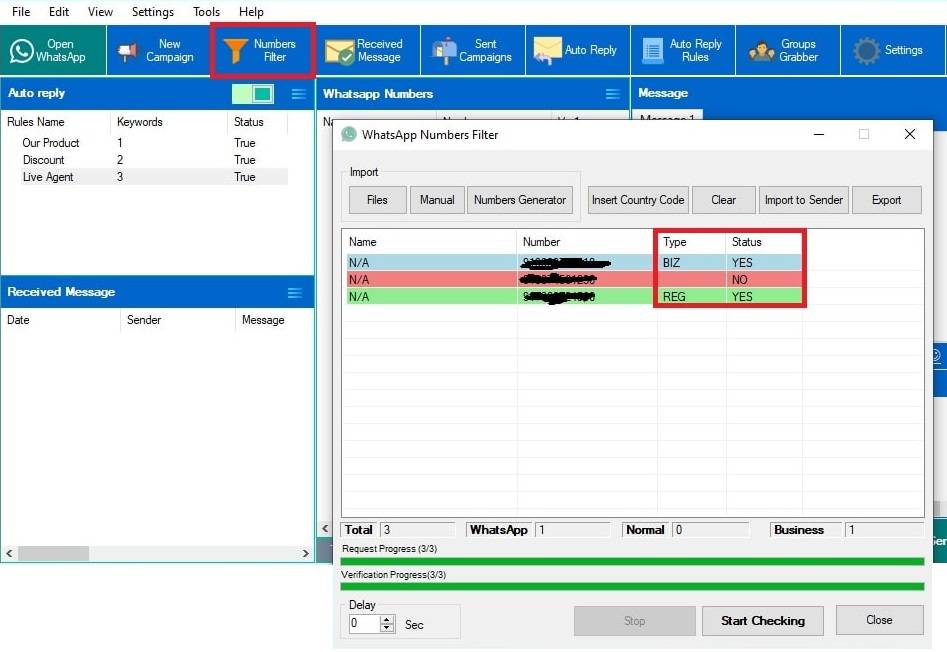
Verify up to 5,000+ numbers within 5–8 minutes. Use the “WApp Numbers” filter to keep your contact lists active and safe. You can import numbers from Excel, CSV, or TXT files, or enter them manually.
To minimize risk, we recommend filtering no more than 1,500 numbers per session. To begin, click “Start Checking” at the bottom.
Important: Add a delay of 2–3 seconds between checks to reduce the risk of restrictions.
After verification, you can:
- Export only the valid numbers list
- Click “Import to Sender” to move them directly into your campaign list
Settings
Click on “Settings” to access advanced options. These controls help reduce risk, especially when sending messages to contacts with no prior interaction.
SCHEDULE SEND
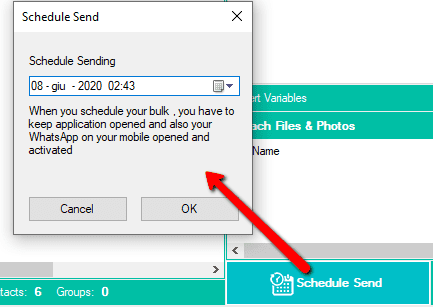
If you want to schedule the sending to another date click on SCHEDULE SEND and choose the sending date and time.
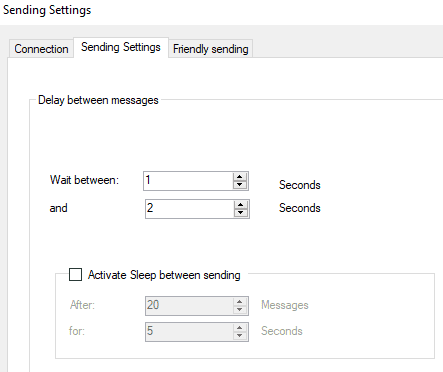
Advanced SENDING SETTING
In the SENDING SETTING section you can set a random delay between messages.
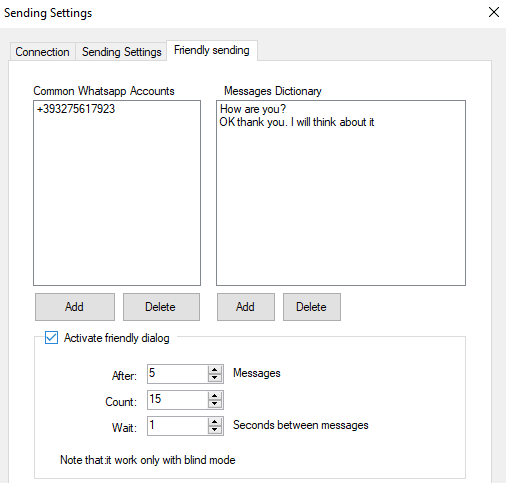
Friendly Sending (Reputation Module)
Set up "Friendly Dialogs" between your own accounts to increase reputation score and mimic human behavior.